Radar charts, also known as spider charts or polar charts, are a type of graphical representation used to display multiple categories of data. They are particularly useful for comparing the performance of different groups or individuals across various metrics. In Excel, radar charts can be used to create interactive and dynamic visualizations that help users gain insights into complex data sets. One of the most popular variations of radar charts is the petal chart, which is a type of radar chart that uses a flower-like shape to display data.
Petal charts are a great way to add some visual flair to your Excel reports and presentations. They are especially useful for displaying data that has a strong seasonal or cyclical component, such as sales figures or website traffic. By using a petal chart, you can create a striking and memorable visualization that helps your audience understand the patterns and trends in your data. In this article, we’ll explore how to create a petal chart in Excel and provide some tips for customizing your radar chart to get the most out of your data.
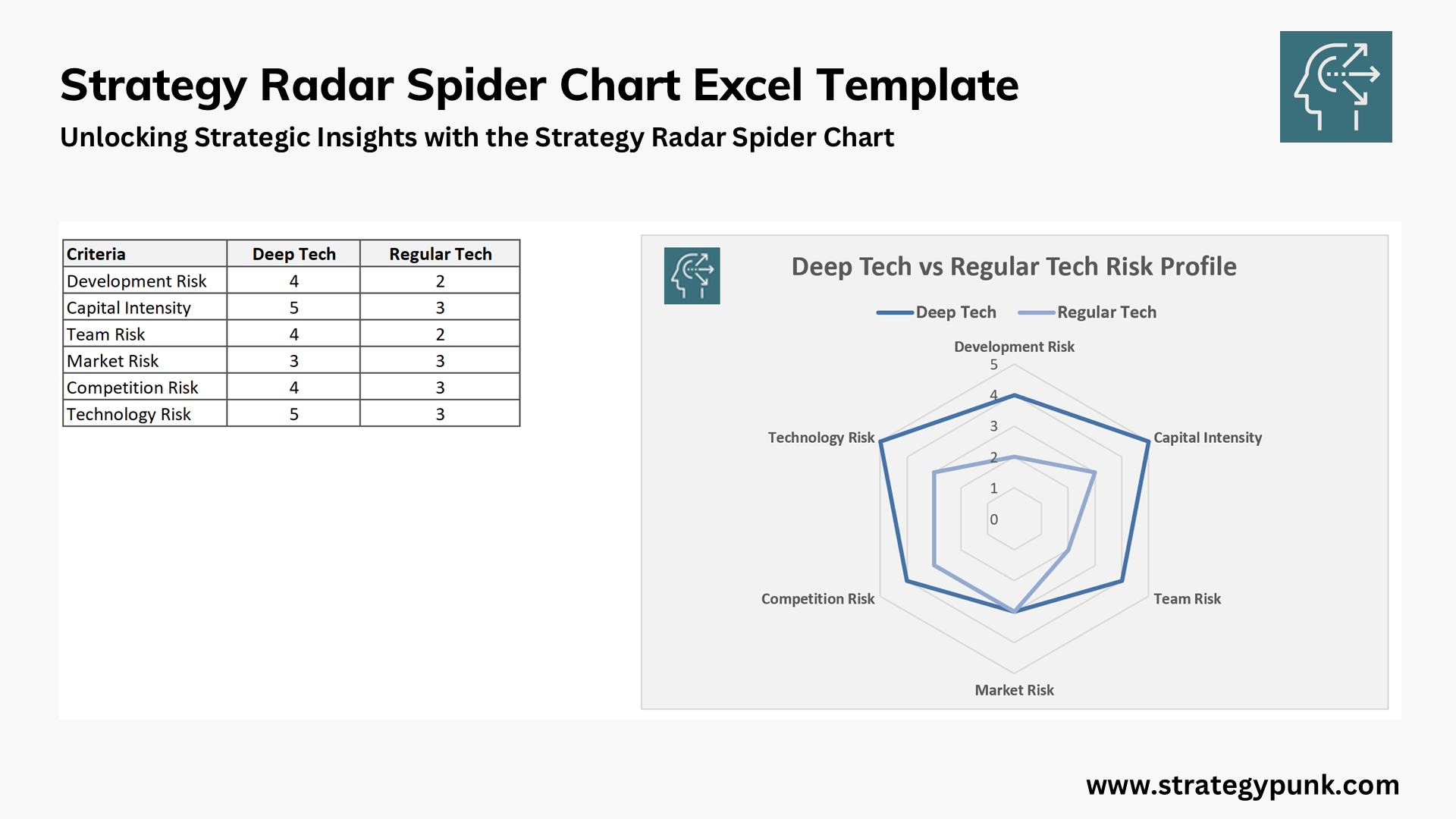
Free Strategy Radar Spider Chart Excel Template
What are Radar Charts?
Radar charts are a type of chart that uses a series of spokes or axes to display data. Each axis represents a different category or metric, and the data points are plotted against each axis. The resulting chart shows the relationship between the different categories and how they compare to each other. Radar charts are often used in sports, business, and education to compare the performance of different teams, companies, or individuals. They are also used in data analysis and science to visualize complex data sets and identify patterns and trends.
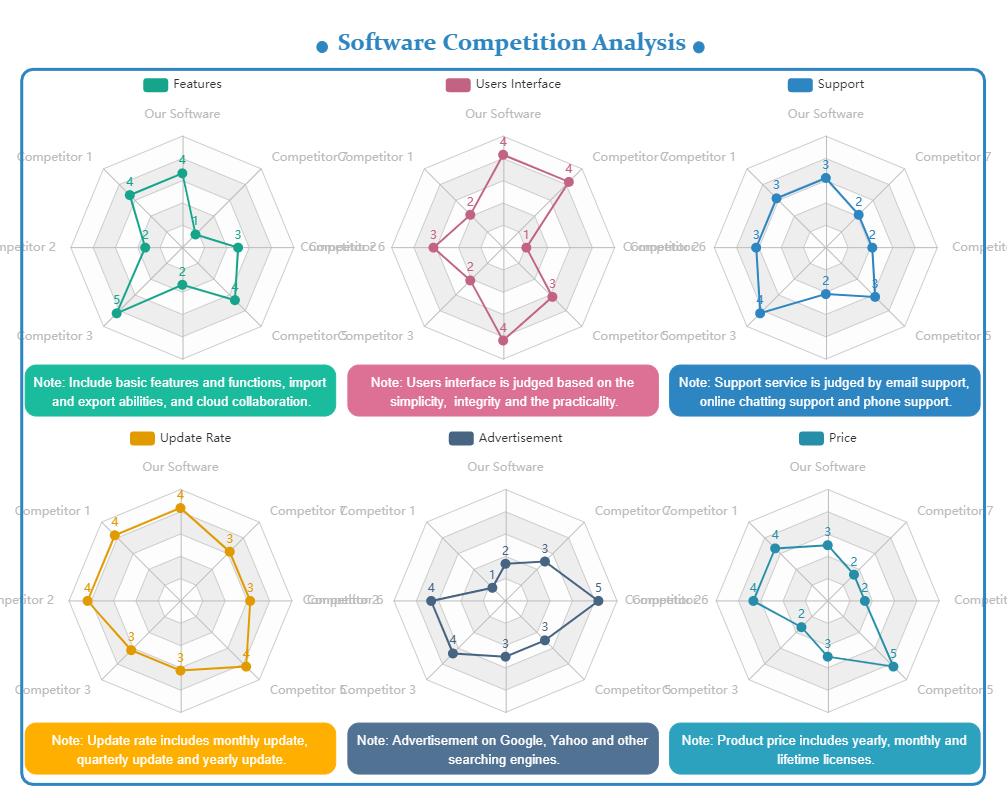
Radar Chart Excel EdrawMax Templates
How to Create a Petal Chart in Excel
To create a petal chart in Excel, you’ll need to start by selecting the data you want to use. This should include the categories or metrics you want to display, as well as the data points for each category. Next, go to the ‘Insert’ tab in Excel and click on ‘Radar’ to select the radar chart type. Then, customize your chart by adding a title, labels, and other design elements. You can also use the ‘Petal’ chart template in Excel to create a pre-formatted petal chart.
Tips for Customizing Your Radar Chart
When it comes to customizing your radar chart, there are a few things to keep in mind. First, make sure your chart is clear and easy to read. Use bold colors and clear labels to help your audience understand the data. You can also use the ‘Legend’ feature in Excel to add a key to your chart and explain what each color or symbol represents. Finally, consider adding interactive elements to your chart, such as hover-over text or drill-down capabilities, to make it more engaging and dynamic.
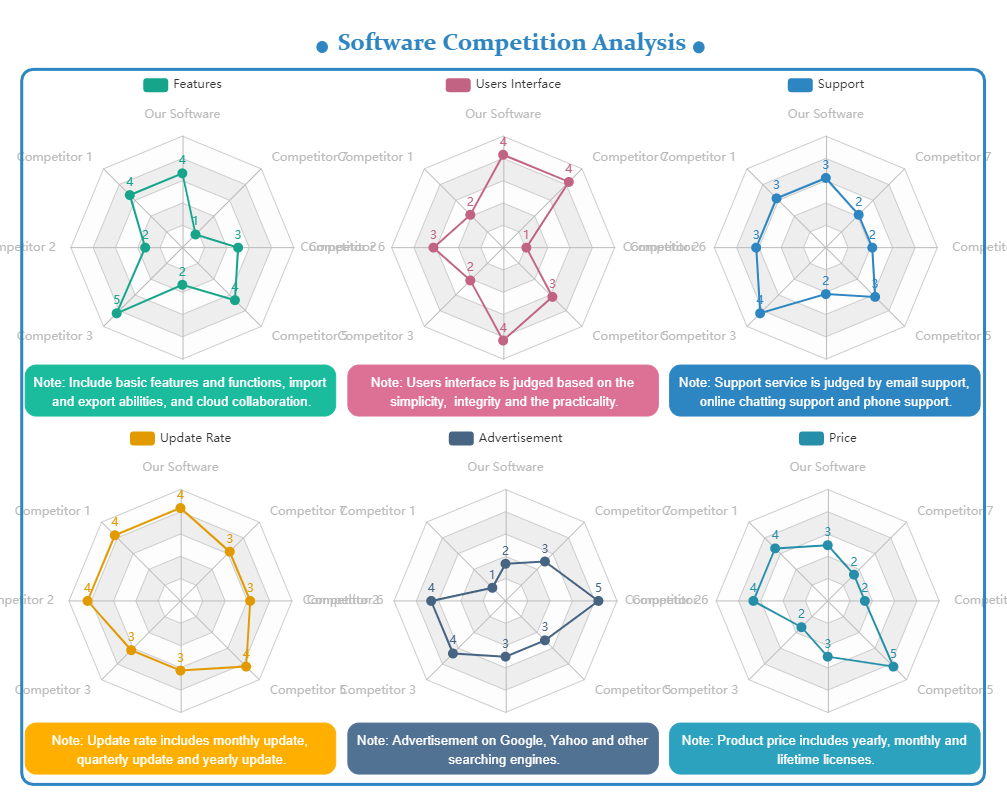
Radar Chart Excel EdrawMax Templates
By following these tips and using the right tools, you can create stunning radar charts and petal charts in Excel that help you unlock new insights and understandings of your data. Whether you’re a business professional, student, or data analyst, Excel radar charts and petal charts are a powerful way to visualize and communicate complex information. So why not give it a try and see what you can create?
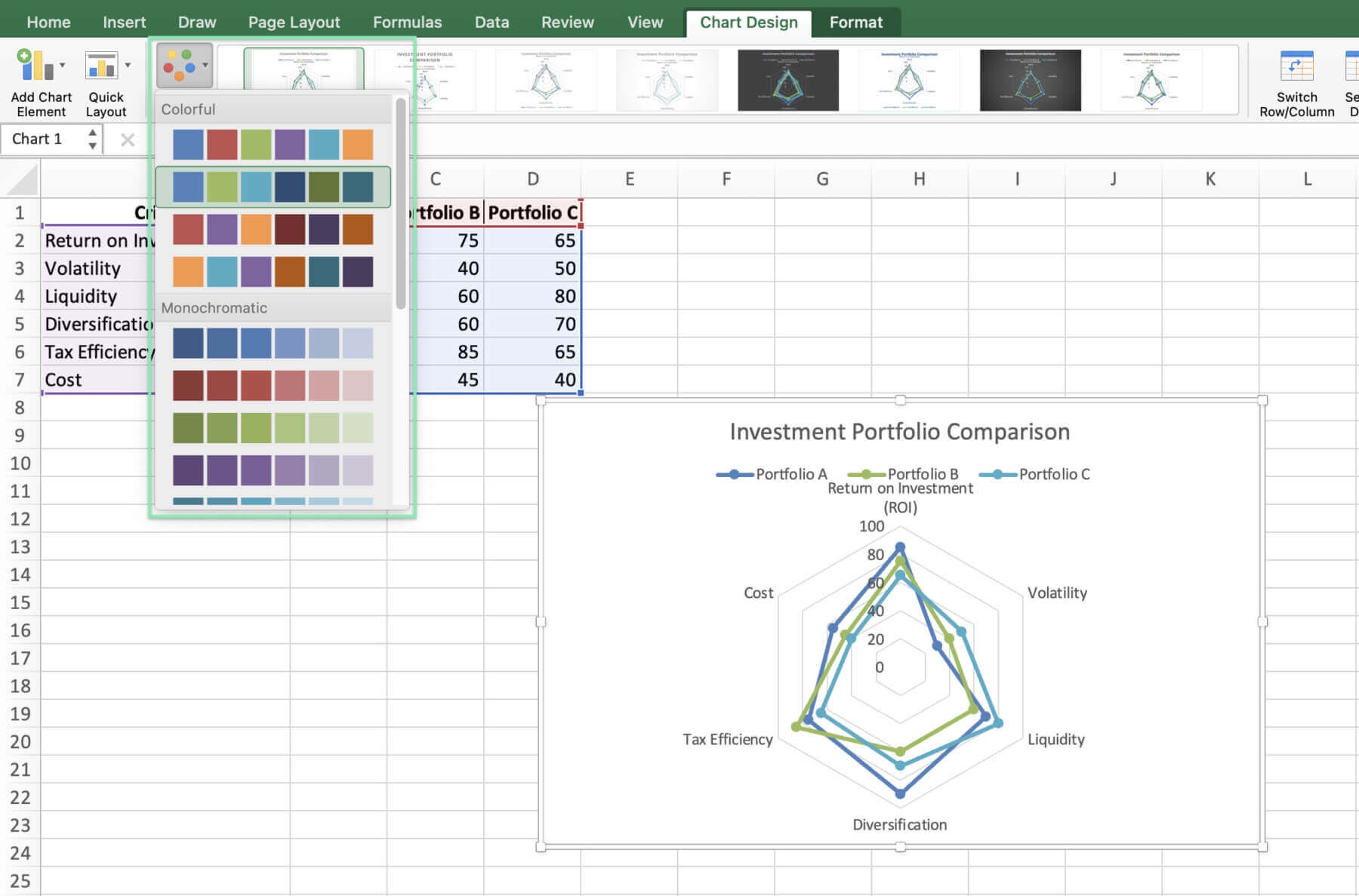
How To Create A Radar Chart In Excel Downloadable Template
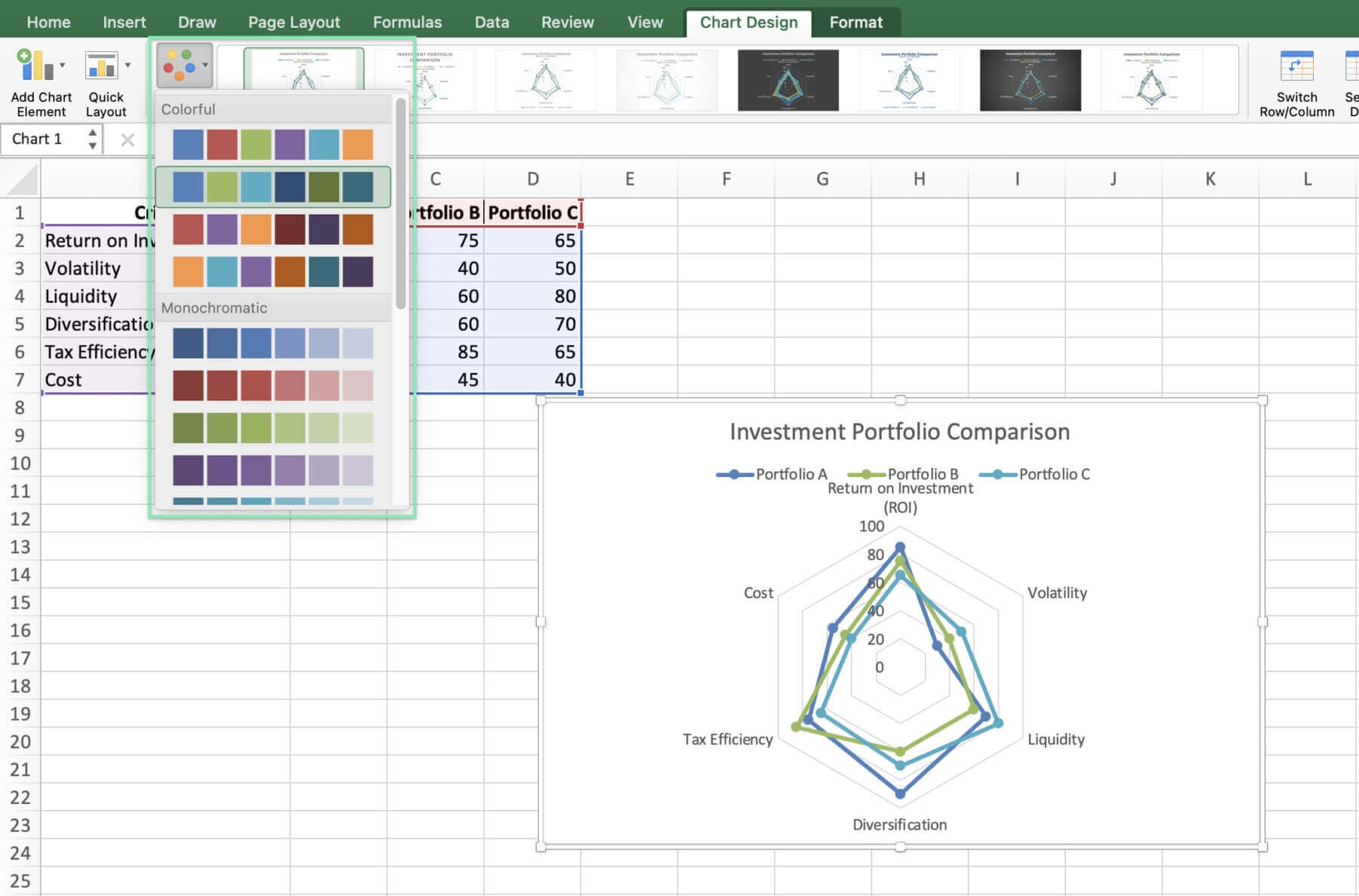
How To Create A Radar Chart In Excel Downloadable Template